How to Upgrade a Customer's Membership
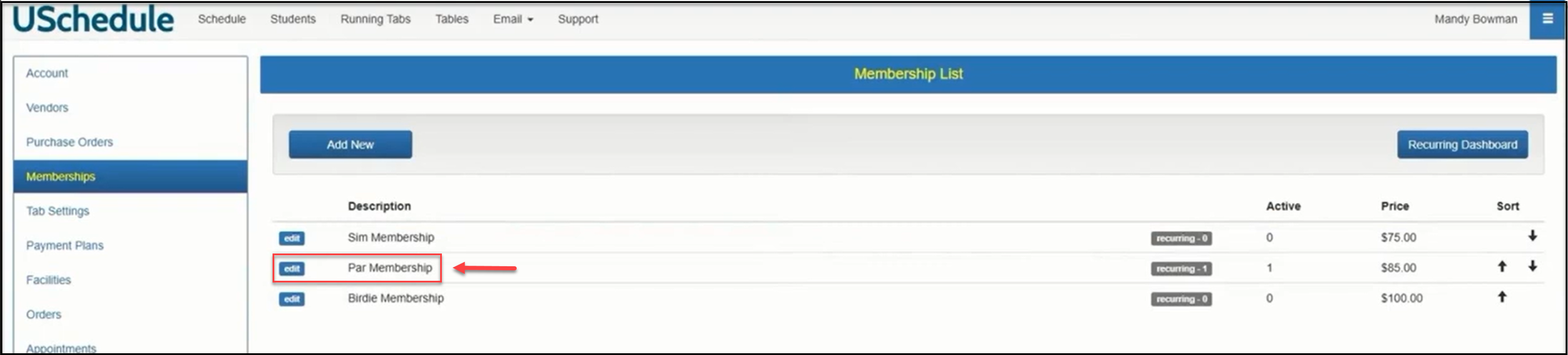
In your Settings menu, click on Memberships and edit the membership you would like to upgrade.
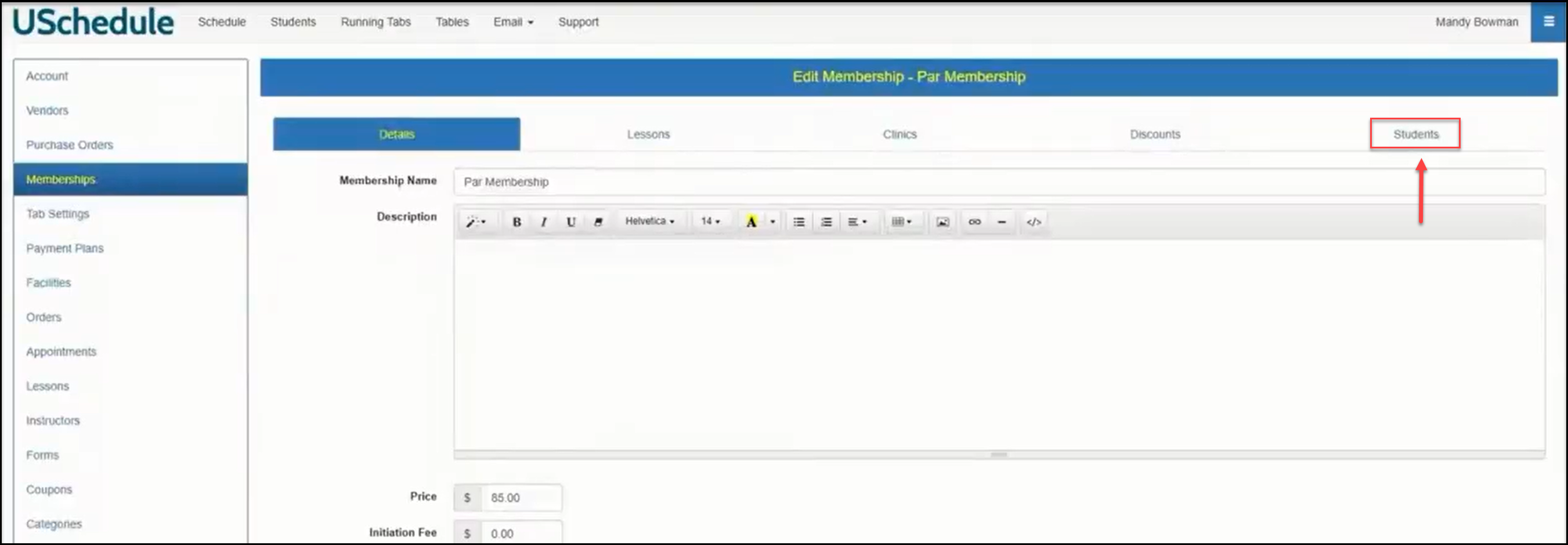
Click on the Students tab where you can access the student list for that membership.
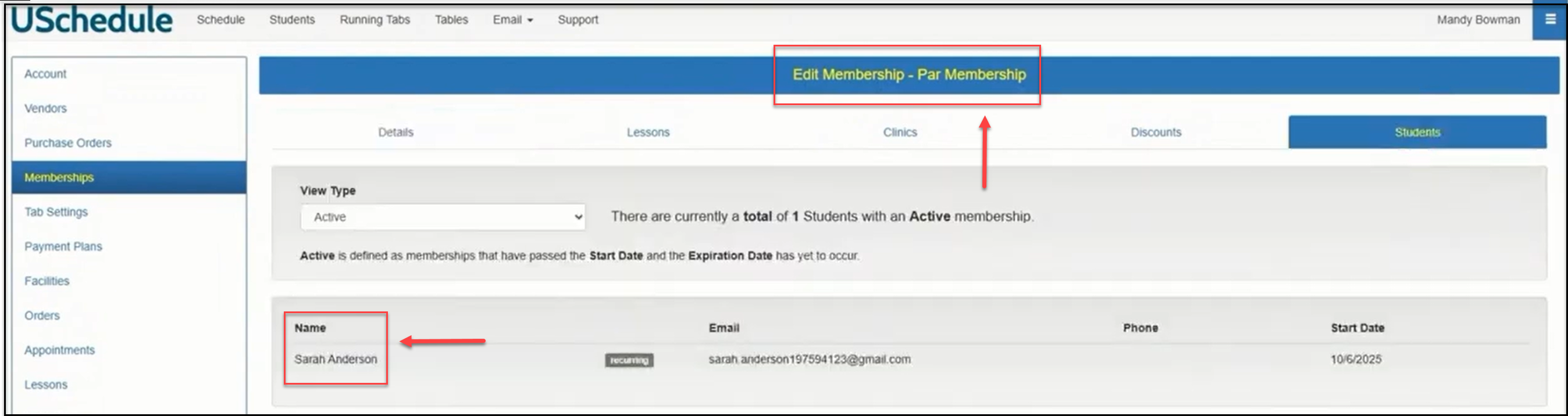
Click on the student name and open the profile.
In the student profile, click on the Navigation menu:
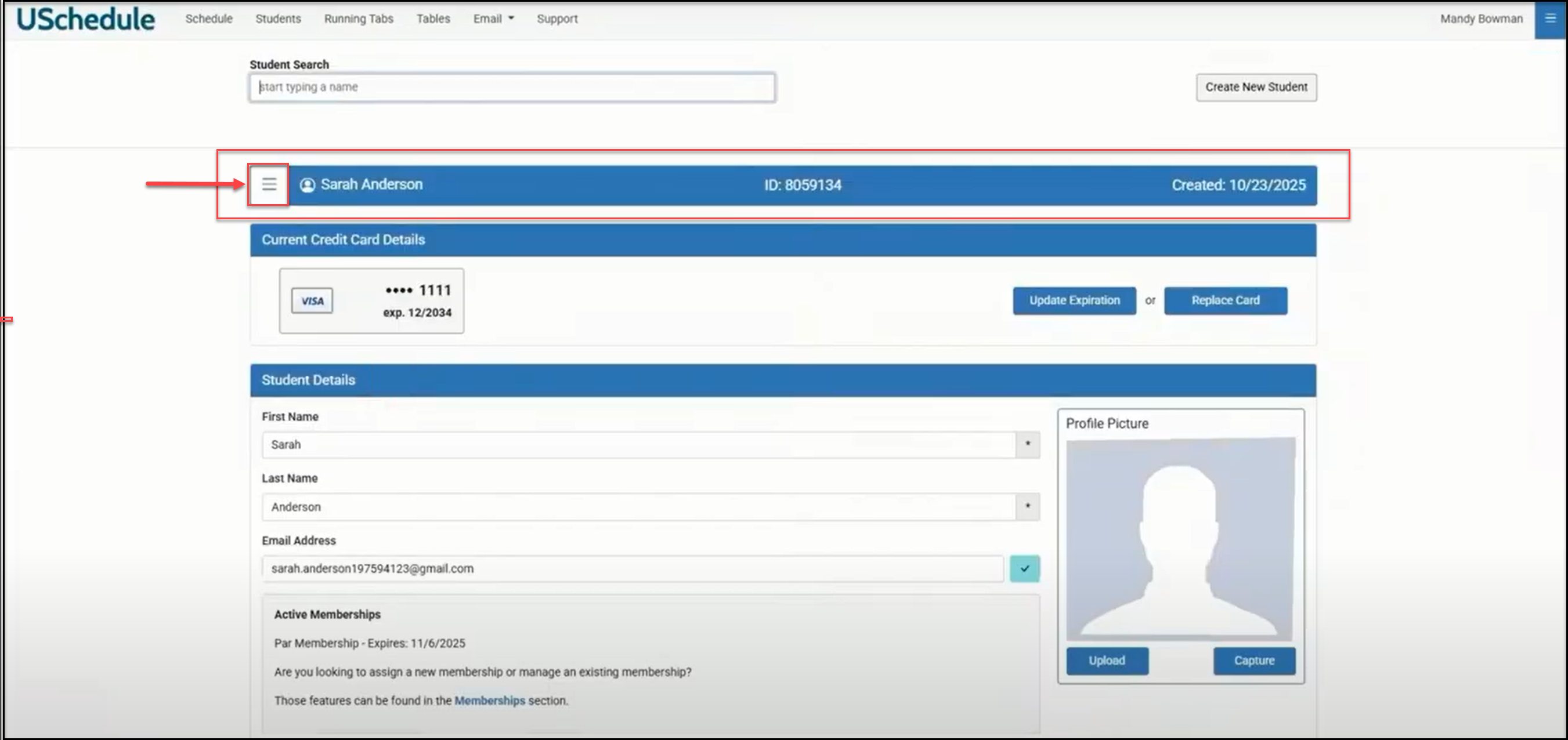
And click on Memberships:

To add the new membership, click Add New:
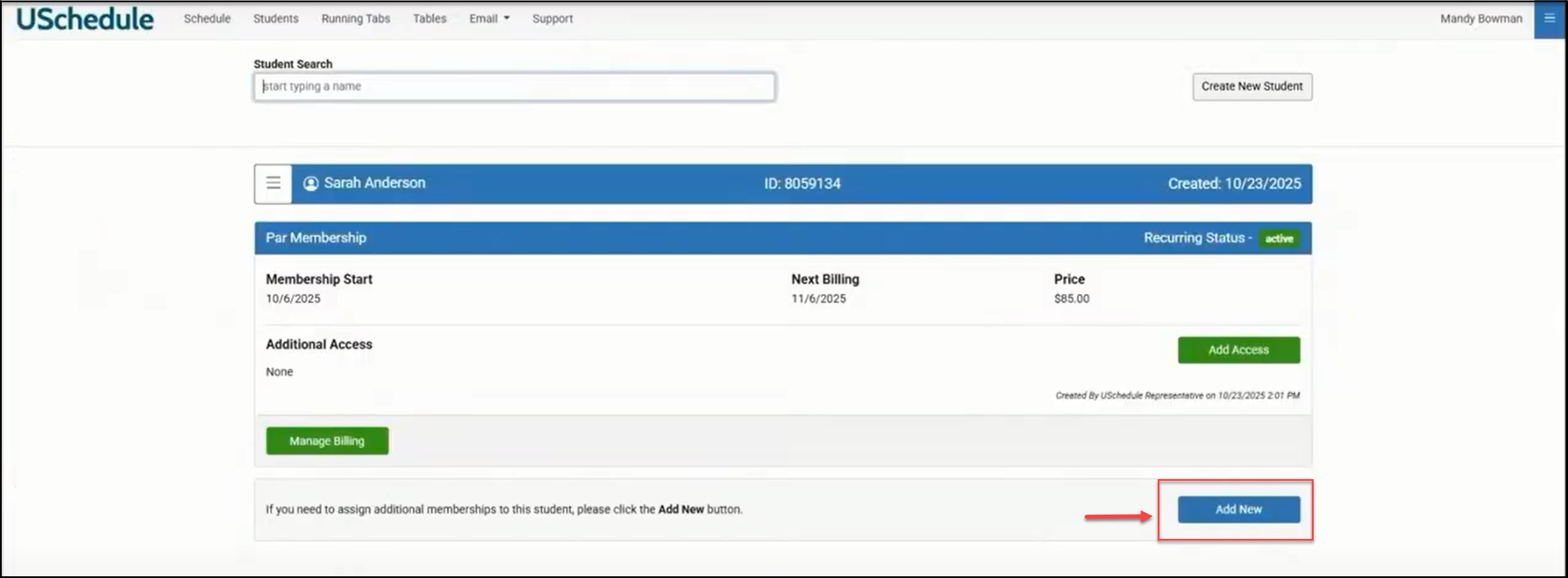
Choose the membership you would like to upgrade the student to and set the start date to match the next billing date on the student's current membership. The current membership expires and the membership they are upgrading to starts on the same day:
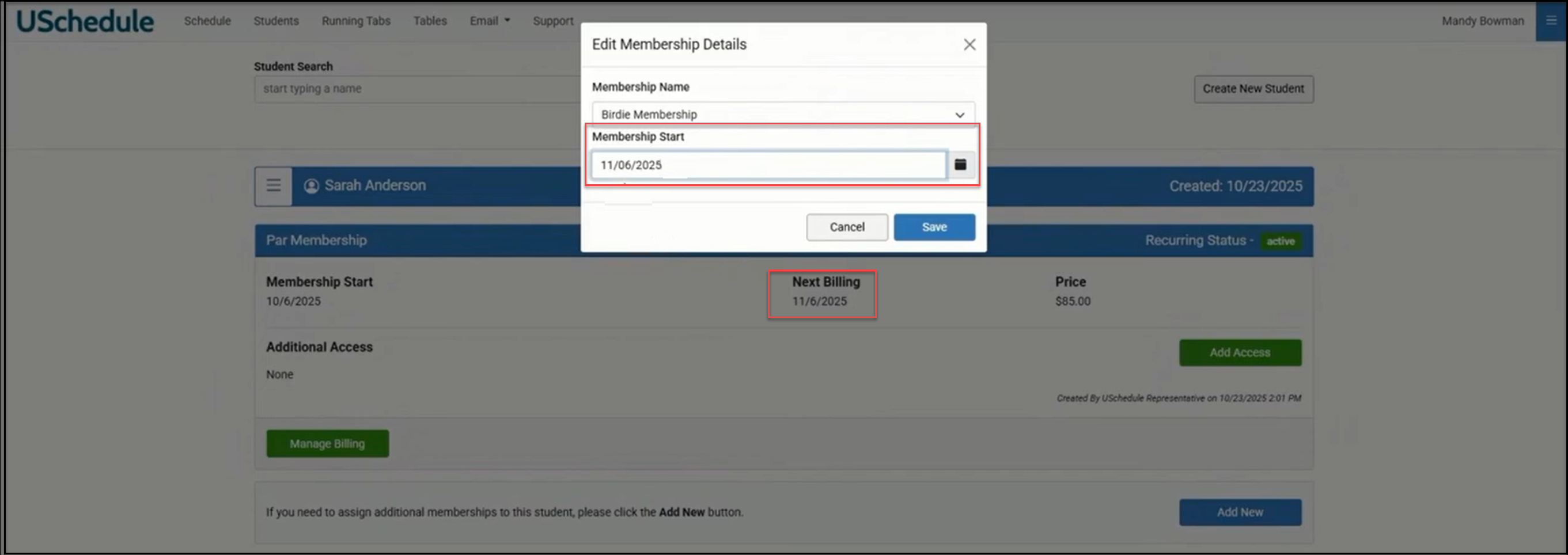
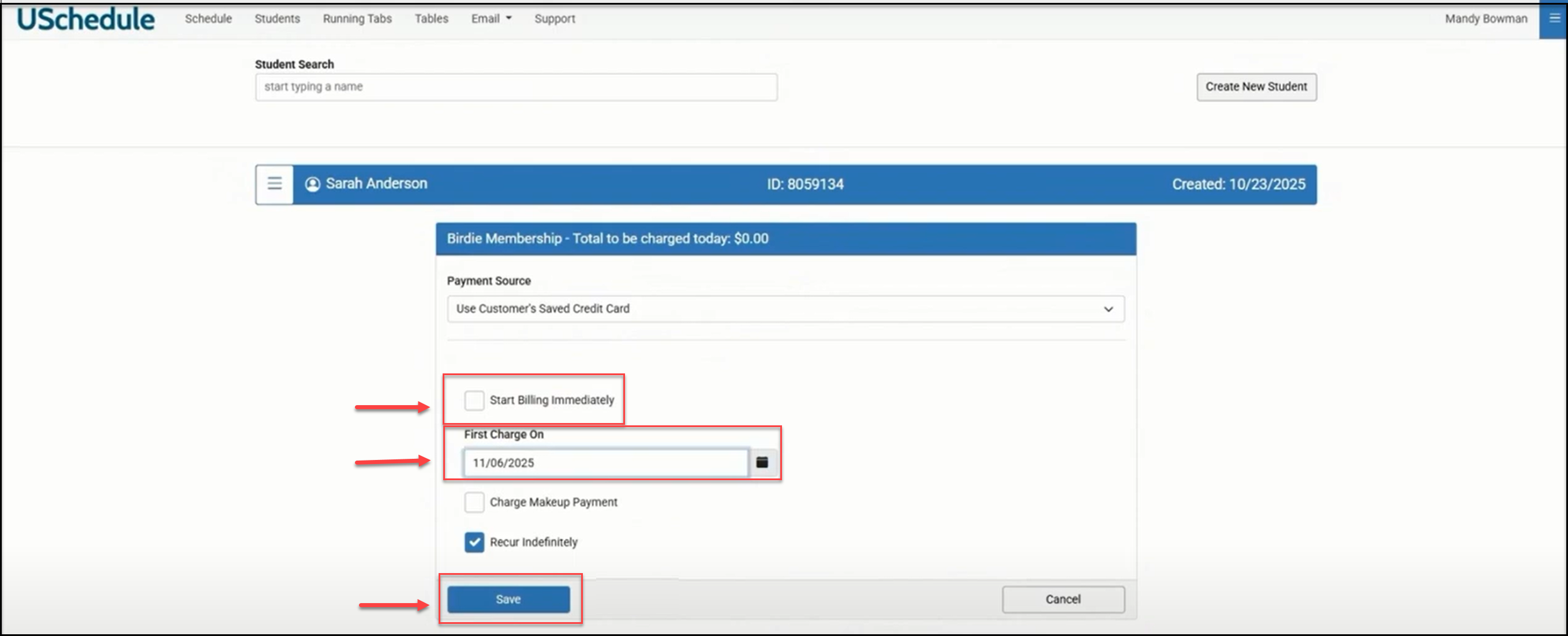
With the new membership in place, you will need to add billing. Click Add Billing.
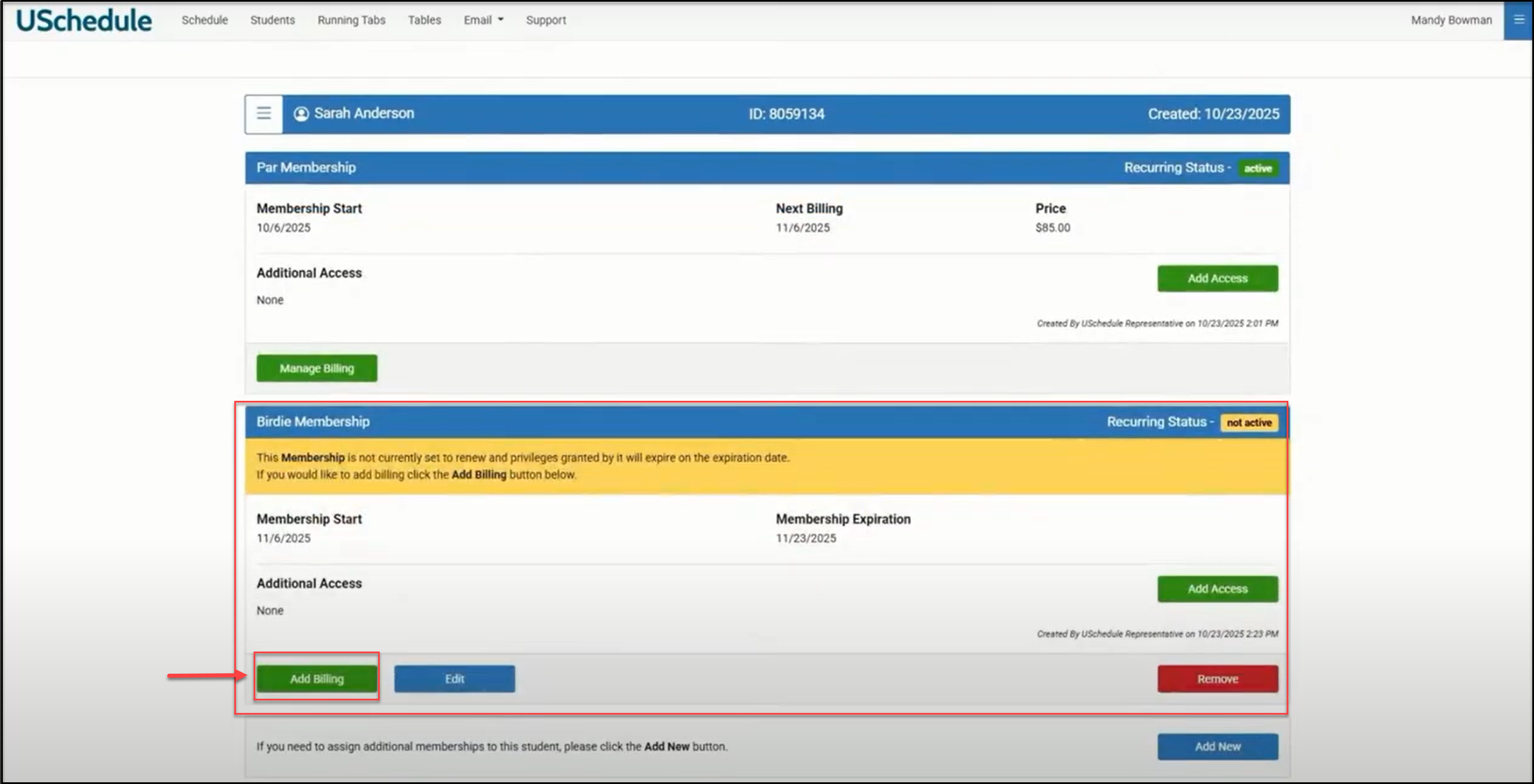
To make sure not to charge the student for the new membership until the old membership expires, uncheck the Start Billing Immediately box and click Save:
Now you have a membership that is expiring and a new membership that is starting on the same date.
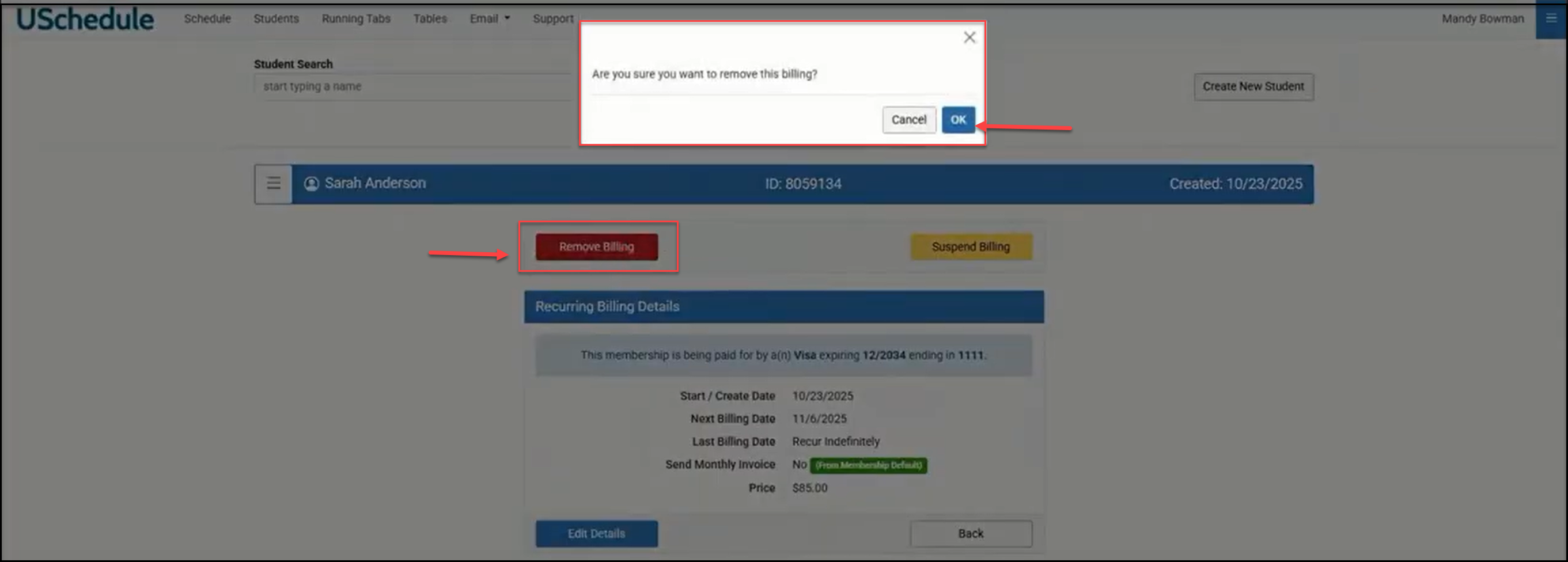
To make sure the student does not get billed for the prior membership, go to the Manage Billing settings:
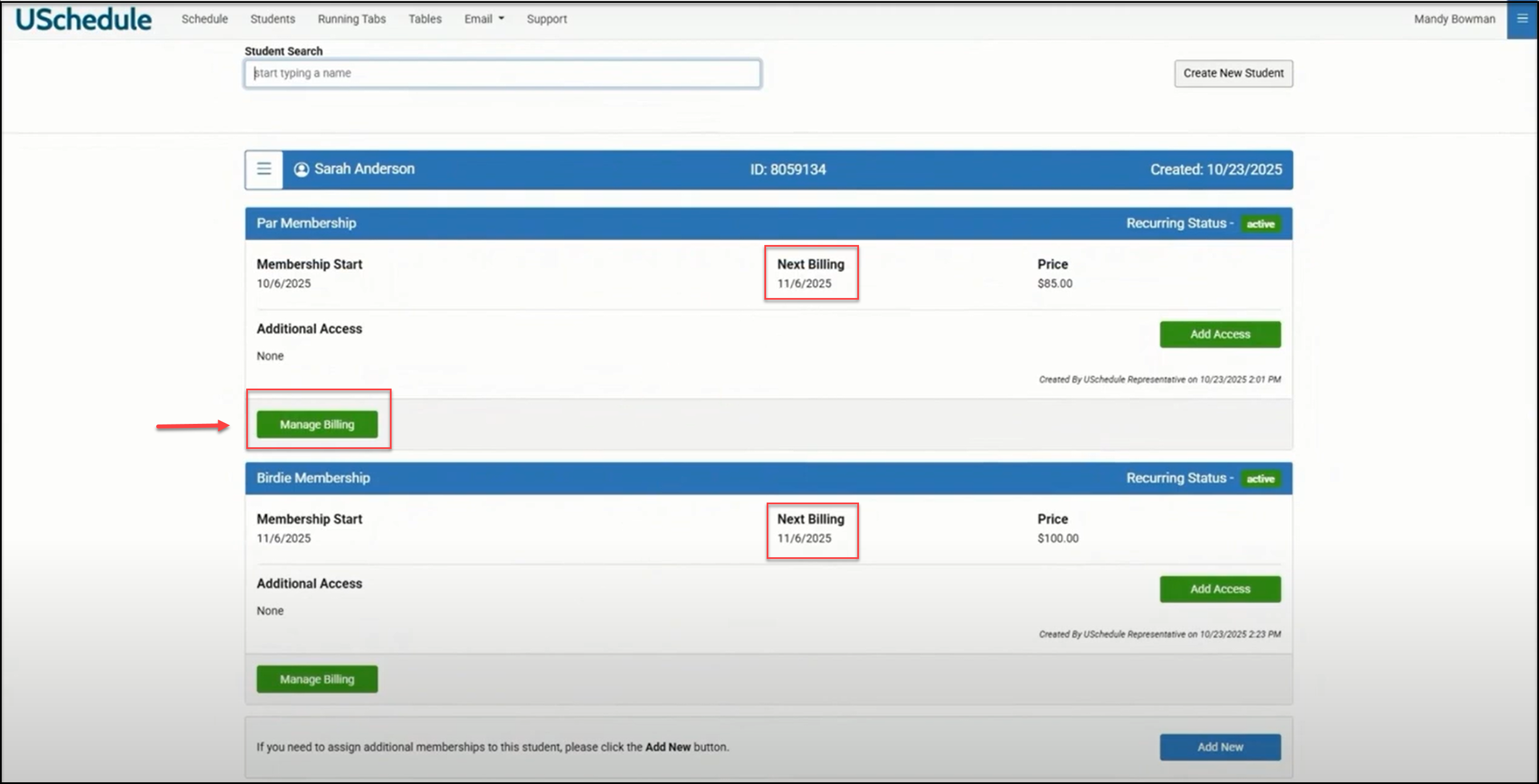
Click on Remove Billing for that previous membership and click OK. This allows this membership to run its course and expire when the new membership begins: